Folder Structure
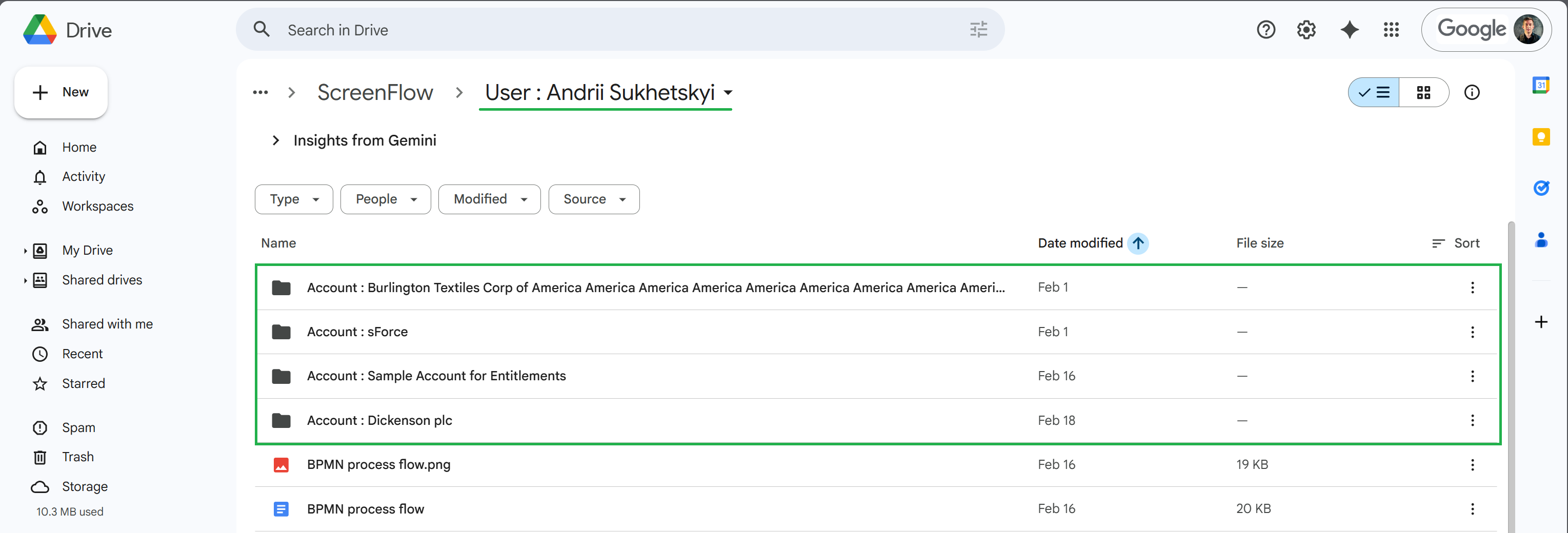
Folder Structure controls how Google Client organizes uploaded files in Google Drive. It lets you keep Drive clean and predictable by automatically placing files into the right folders based on your configuration.
Where to Configure It
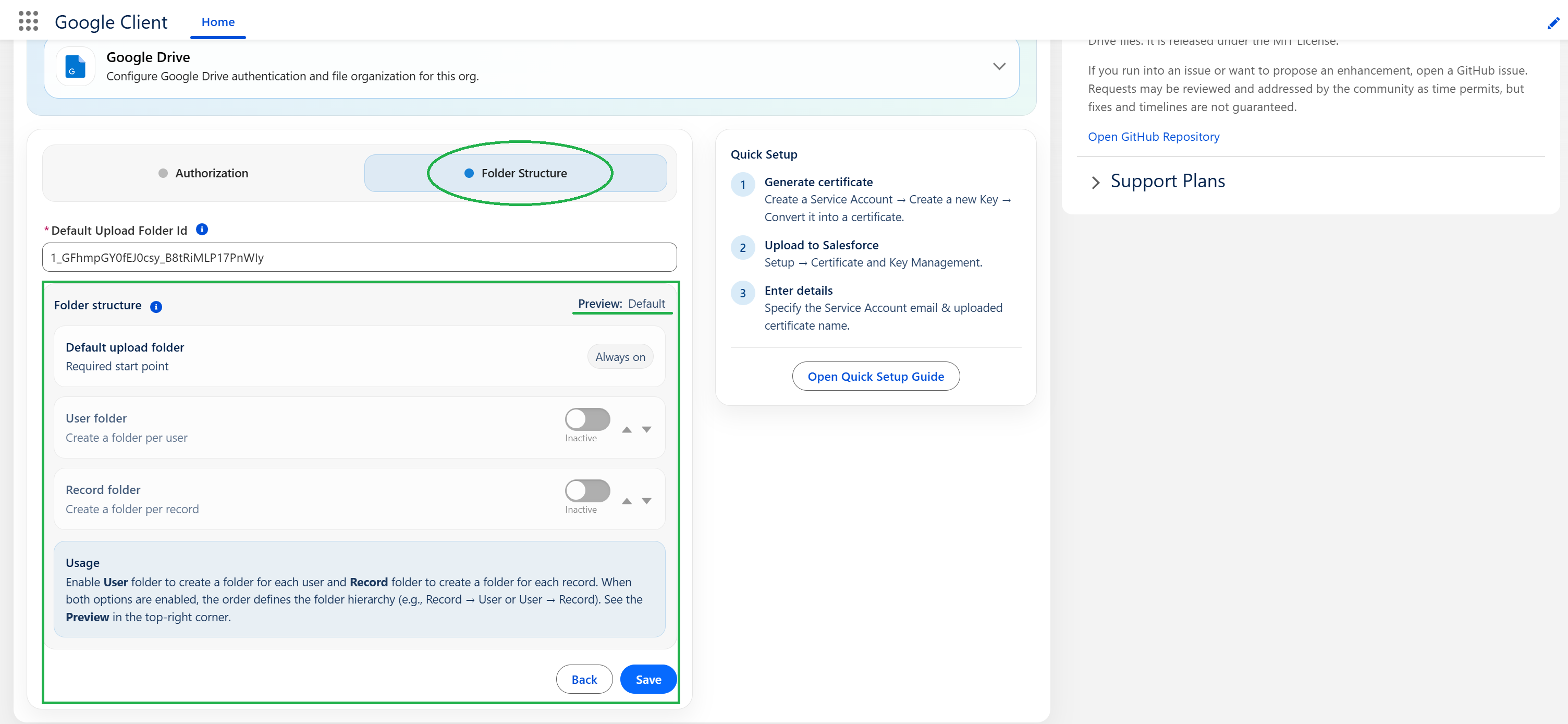
Folder Structure is configured in the Google Client Lightning app in Salesforce.
Default Behavior
By default, Google Client uploads files into a single Drive folder (your Default Upload Folder Id) with no additional structure.
This is the simplest option and works well for small teams or proof-of-concepts.
How Folder Structure Works
You can enable one or both structure levels:
- User folder — creates a folder per user
- Record folder — creates a folder per Salesforce record
You can also change the order of these levels (move them up/down) to define the hierarchy, for example:
- Record → User (a folder per record, then a folder per user inside)
- User → Record (a folder per user, then record folders inside)
The Preview in the configuration screen shows the resulting path.
When It Applies
Folder Structure rules are applied whenever a file is uploaded through Google Client, including:
- Upload from record context
- Upload from preview window
- Upload from File Explorer
- Attach an existing Google Client file to another record, when the configured structure includes a record folder
In all cases, Google Client computes the target folder path and places the file accordingly.
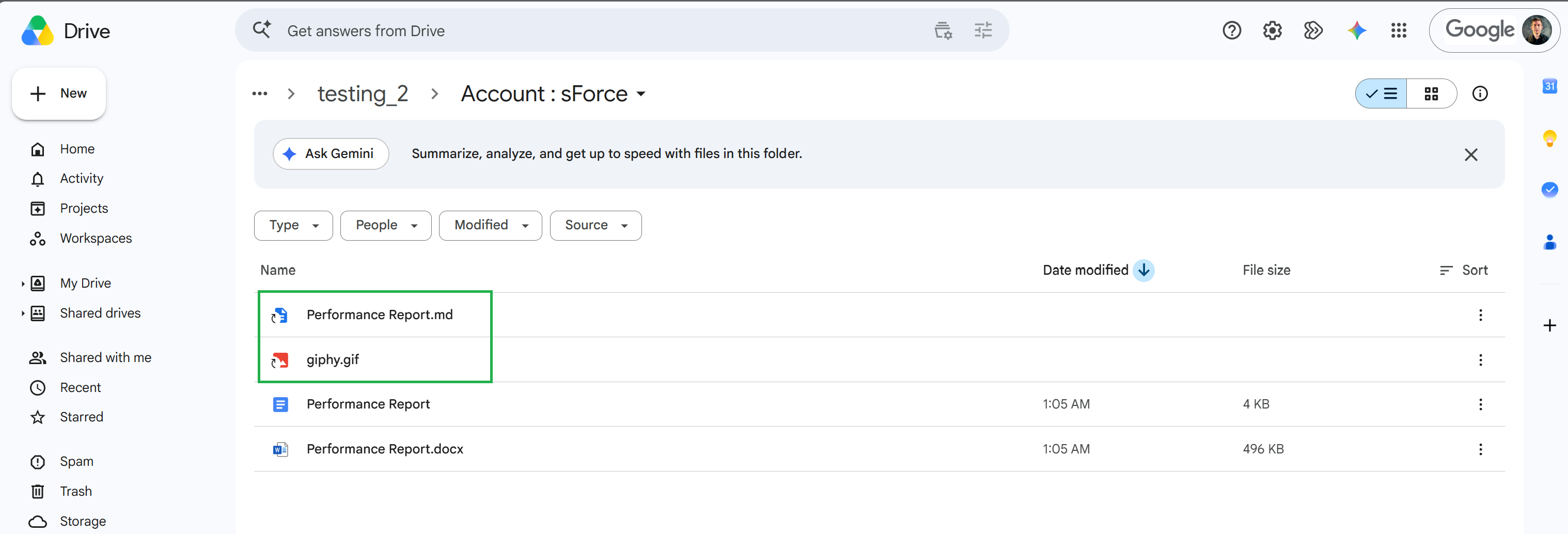
When an existing file is attached to another record, Google Client keeps the original Drive file in place and creates a Google Drive shortcut in the resolved folder for the newly linked record.
Shortcut behavior depends on the configured structure:
| Folder Structure | Existing File Attachment Behavior |
|---|---|
| No folder structure / Default folder only | No shortcut is created |
| Folder per User | No shortcut is created |
| Folder per Record | Shortcut is created in the resolved record folder |
| Folder per User → Record | Shortcut is created in the resolved nested record folder |
| Folder per Record → User | Shortcut is created in the resolved nested user folder |
Processing Time
Folder creation and structuring is handled by an asynchronous job. After upload or existing-file attachment, it can take around 1 minute for the final folder structure or shortcut to appear in Google Drive.
How It Looks in Google Drive