Configure Components (Experience Cloud)
This page explains how to use Google Client Lightning components in Experience Cloud sites.
Google Client components work in both LWR and Aura-based Experience Cloud sites.
Experience Cloud requires additional setup compared to Core Clouds because site navigation is stricter. Google Client needs two fixed pages for View All and File Details navigation before record components can work correctly.
If you are configuring standard Salesforce Lightning record pages instead, use Configure Components (Core Clouds).
Required Setup
Experience Cloud does not allow components to open arbitrary pages at runtime. For Google Client to support navigation patterns such as View All and File Details, two dedicated pages must exist in the site.
These pages act as fixed navigation targets and host internal Google Client components.
Pages you must create
You must create two empty Experience Cloud pages with the following URLs:
-
gview-all-files
- Label/API can be set to something user-friendly (for example: “View All Files”).
- This page will be opened automatically when users click “View All”.
-
gfile-details
- Label/API can be set to something user-friendly (for example: “File Details”).
- This page will be opened automatically when users click “View File Details“.
Step-by-step: Creating the Required Pages
- Open Salesforce and navigate to your Experience Cloud site.
- Click Builder to open Experience Builder.
- In the top-left corner, open the Pages panel.
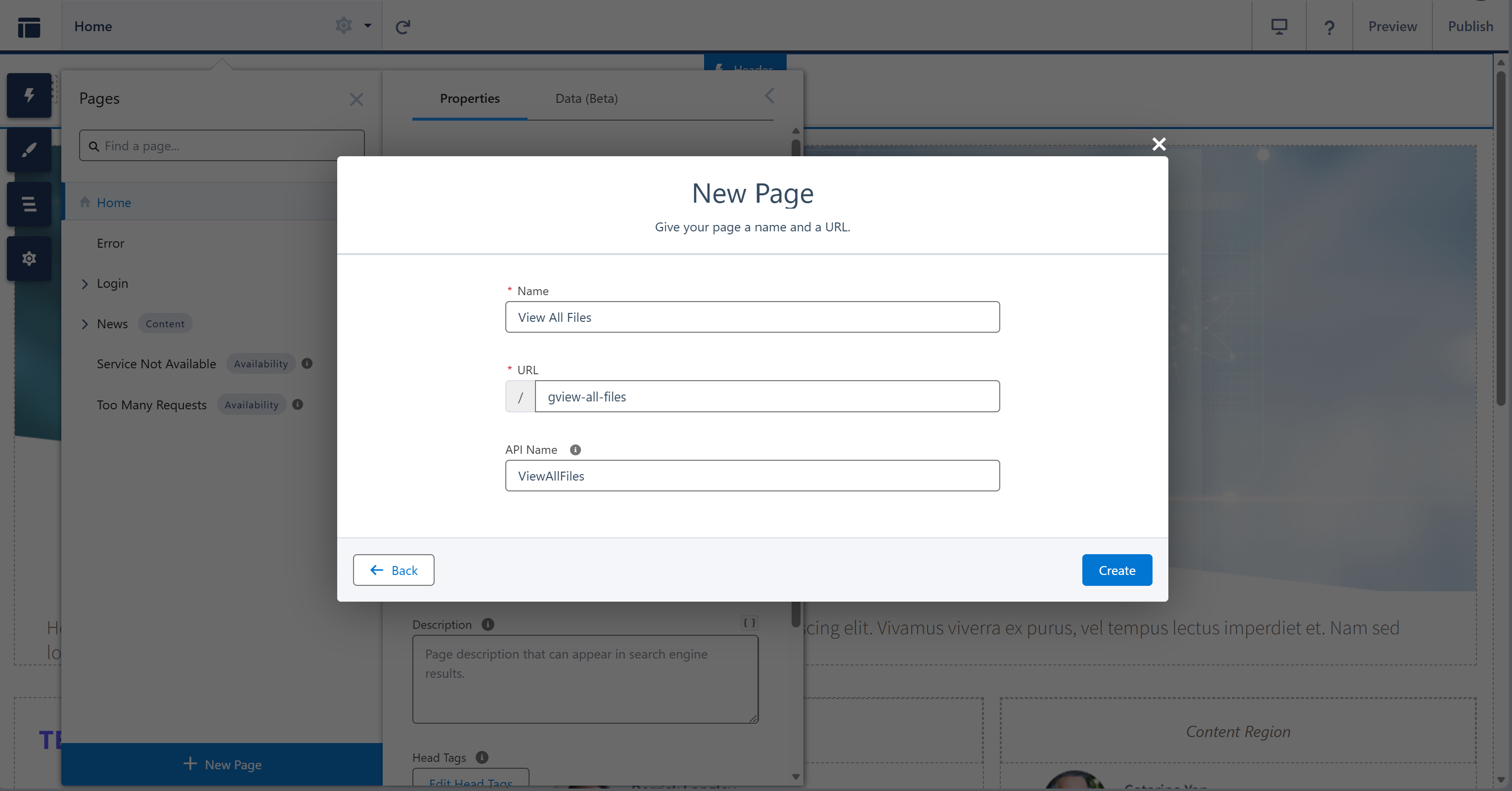
- Click New Page.
- Select Standard Page.
- Click New Blank Page.
- Choose 1 full-width column layout.
- Create the first page:
- Name: View All Files (or similar)
- API Name: ViewAllFiles (or similar)
- URL: gview-all-files
- Create the second page:
- Name: File Details (or similar)
- API Name: FileDetails (or similar)
- URL: gfile-details
Place Required Internal Components
After creating the pages, place the required internal Google Client components on each page. These components are not the main record components your users work with directly; they are navigation targets used by Google Client after a user clicks View All or View File Details.
Page: gview-all-files
- Open the gview-all-files page in Experience Builder.
- From the components panel, locate Google Client: All Attachments.
- Drag the component into the main content area.
- Use a single, wide section for best results.
Page: gfile-details
- Open the gfile-details page in Experience Builder.
- From the components panel, locate Google Client: Record Page Details.
- Drag the component into the main content area.
- Use a single, wide section for best results.
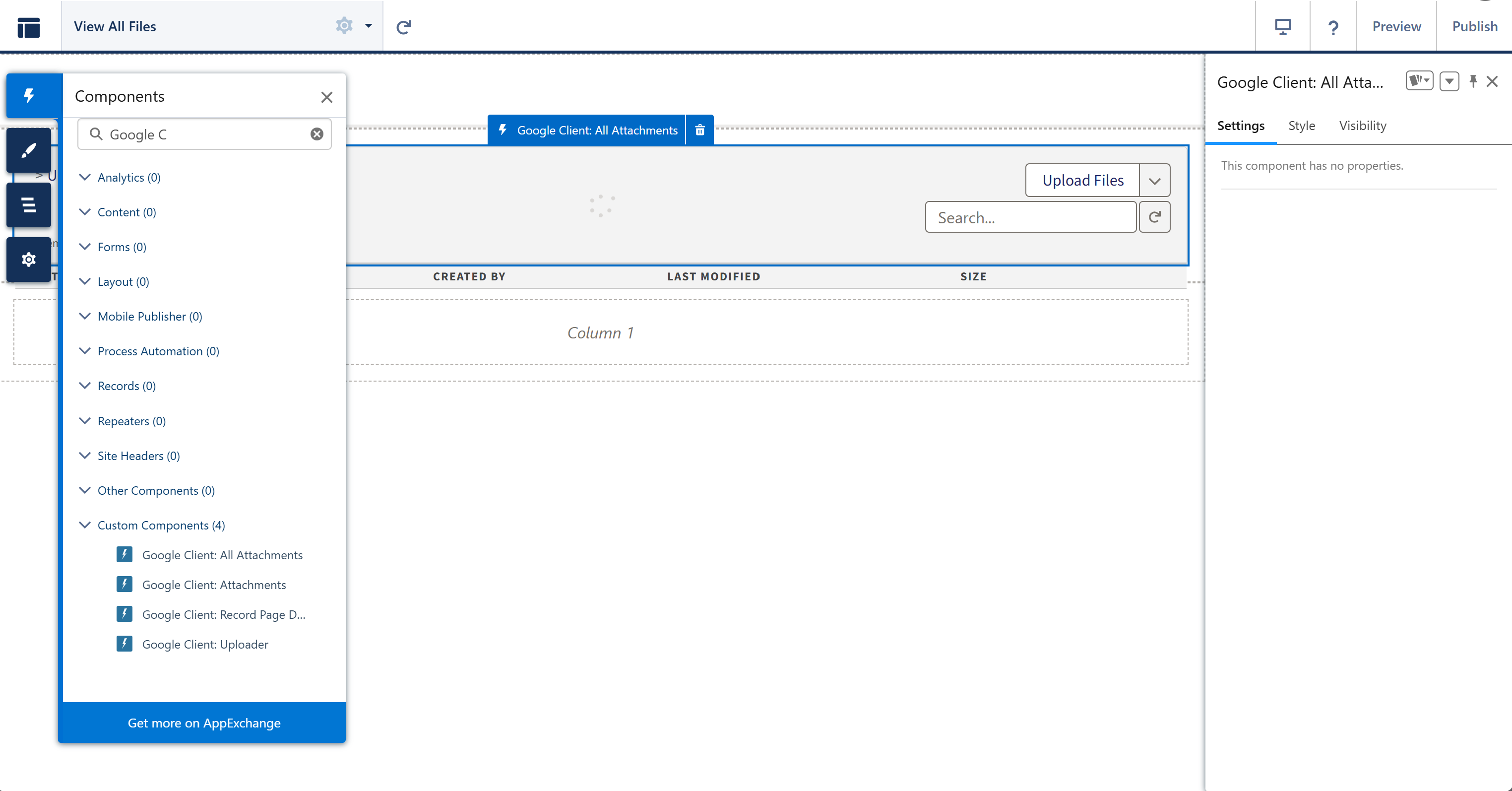
After placing both components, click Publish to make the pages available. At this point, navigation used by Google Client components is fully configured.
Components You Can Place on Record Pages
After completing the setup above, you can safely place Google Client components on record-driven Experience Cloud pages.
Google Client: Attachments
Provides full Google Drive file management for a Salesforce record, serving as a complete replacement for Notes & Attachments.
Where it can be used
- Experience Cloud record pages
Important configuration notes
-
recordId
Use
{!recordId}to enable dynamic binding to the current record. - objectApiName Set this statically based on the object where the component is placed.
Typical use
- Main file list for records exposed in Experience Cloud.
- Lets external users upload new files or attach existing owned Google Client files where their access allows it.
- Automatically opens the “View All Files” page when needed.
Google Client: Uploader
Provides a dedicated upload interface for adding files to Google Drive from Experience Cloud.
Where it can be used
- Experience Cloud record pages
Important configuration notes
-
recordId
Use
{!recordId}for dynamic binding. - objectApiName Set statically to match the record type used on the page.
Typical use
- Controlled upload experience for external or community users.
- Supports the same preview, sharing, version, and attach-existing flows when the user has the required access.
What Users Get After Placement
Experience Cloud users work with the same Google Client security model used in Core Clouds. Access is resolved through ownership, direct sharing, record access, public link rules, internal/external visibility, and linked record associations.
Depending on their access, users can upload, attach existing owned files, preview supported files, download, share, manage public links, and open file details without leaving the site.
Important Notes
- Both LWR and Aura Experience Cloud sites are supported.
- The required pages must exist before record-level components will work correctly.
- The page URLs must match exactly:
gview-all-filesandgfile-details. - Record context must be provided using
{!recordId}.