Configure AI & Intelligence
This guide walks through configuring the optional AI & Intelligence layer inside the Google Client app. Once set up, it enables document summaries, file Q&A, and automatic labeling for supported files stored in Google Drive.
Note
Haven't configured Google Drive yet? That step is required first: Configure Google Workspace
Before You Begin
AI & Intelligence is an optional layer on top of the Google Drive integration. You must have Google Drive already configured and working before proceeding.
You also need to decide which provider model is appropriate for the org:
- Gemini Developer API for quick setup, sandboxes, and internal evaluation
- Agent Platform for UAT and production environments where Google Cloud project controls matter
Step 1: Open the Google Client Application
- Open the Google Client application from the App Launcher.
- Navigate to the Home page.
- Expand the Gemini & Agent Platform section under Google Integration Settings.
A short guide for the selected provider appears in the side panel of the Home page while you work, and closes when you no longer need it.
Step 2: Choose an Integration Method
Google Client supports two ways to connect to Google's AI services:
- Gemini Developer API, API key-based setup, ideal for developer workflows and non-production environments
- Agent Platform (Gemini Enterprise Agent Platform, formerly Vertex AI), service account-based setup, recommended for production and UAT
Option A: Gemini Developer API
Use this option for quick setup in developer or sandbox environments. Authentication is handled through an API key generated in Google AI Studio. No Google Cloud project configuration is required.
When to use: Internal experimentation, developer workflows, and lighter non-production scenarios.
- Select Gemini Developer API
- Go to Google AI Studio and create or select a project
- Generate a Gemini API Key
- Paste the key into the Gemini API Key field
- Set the Model Name (e.g.
gemini-3.8-flash) - Click Save & Validate
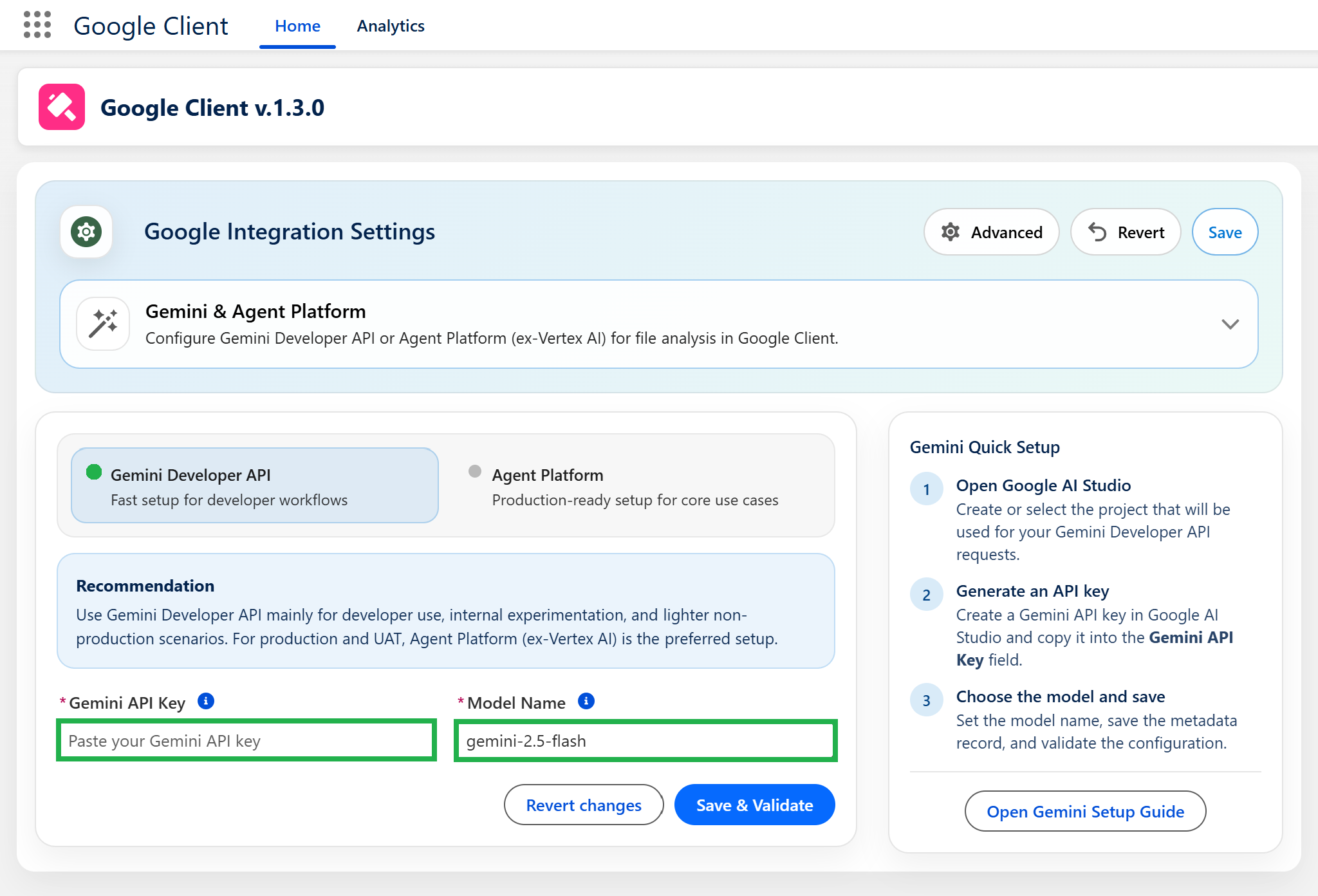
Note
A notice in the corner of the page reminds you that AI analysis is still off. That is expected at this point: provider details are saved and validated here, and analysis is switched on in the next step.
Option B: Agent Platform (Gemini Enterprise Agent Platform)
Use this option for production and UAT environments. Authentication uses the same Google Cloud service account already configured for Google Drive, no new service account is required. You only need to grant it the Vertex AI User role on the target project.
When to use: Production and UAT environments. It is a stronger enterprise fit for Google Client and enables enterprise-grade AI automation.
- Select Agent Platform
- In the Google Cloud Console, open the target project, ensure billing is active, and enable the Vertex AI API for that project
- Grant the existing Drive service account the Vertex AI User role on that project
- Enter the Agent Project ID (your Google Cloud project ID, e.g.
my-google-cloud-project) - Enter the Agent Location (the region where the model runs, e.g.
us-central1orglobal) - Set the Model Name (e.g.
gemini-3.8-flash) - Click Save & Validate
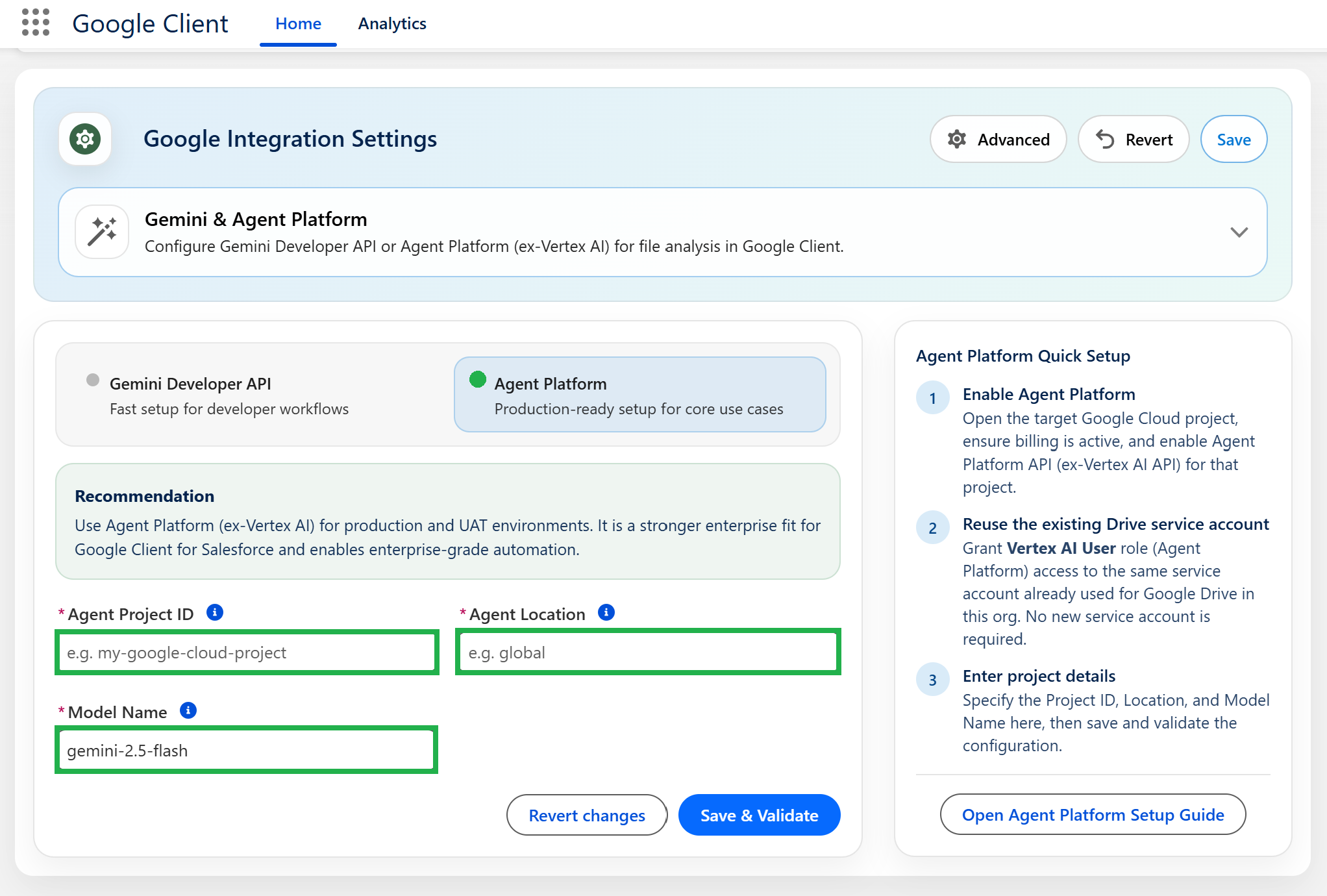
Step 3: Turn On AI Analytics
Open Advanced → AI Intelligence and turn on AI Analytics.
The switch is available only once a provider has been saved. When you flip it, Google Client checks the provider straight away and tells you if it is not ready, so nothing is turned on against a provider that does not answer. Save the configuration to apply it.
When this setting is off, Google Drive file operations continue to work normally, but the AI summary, Q&A, and labeling experience is not available.
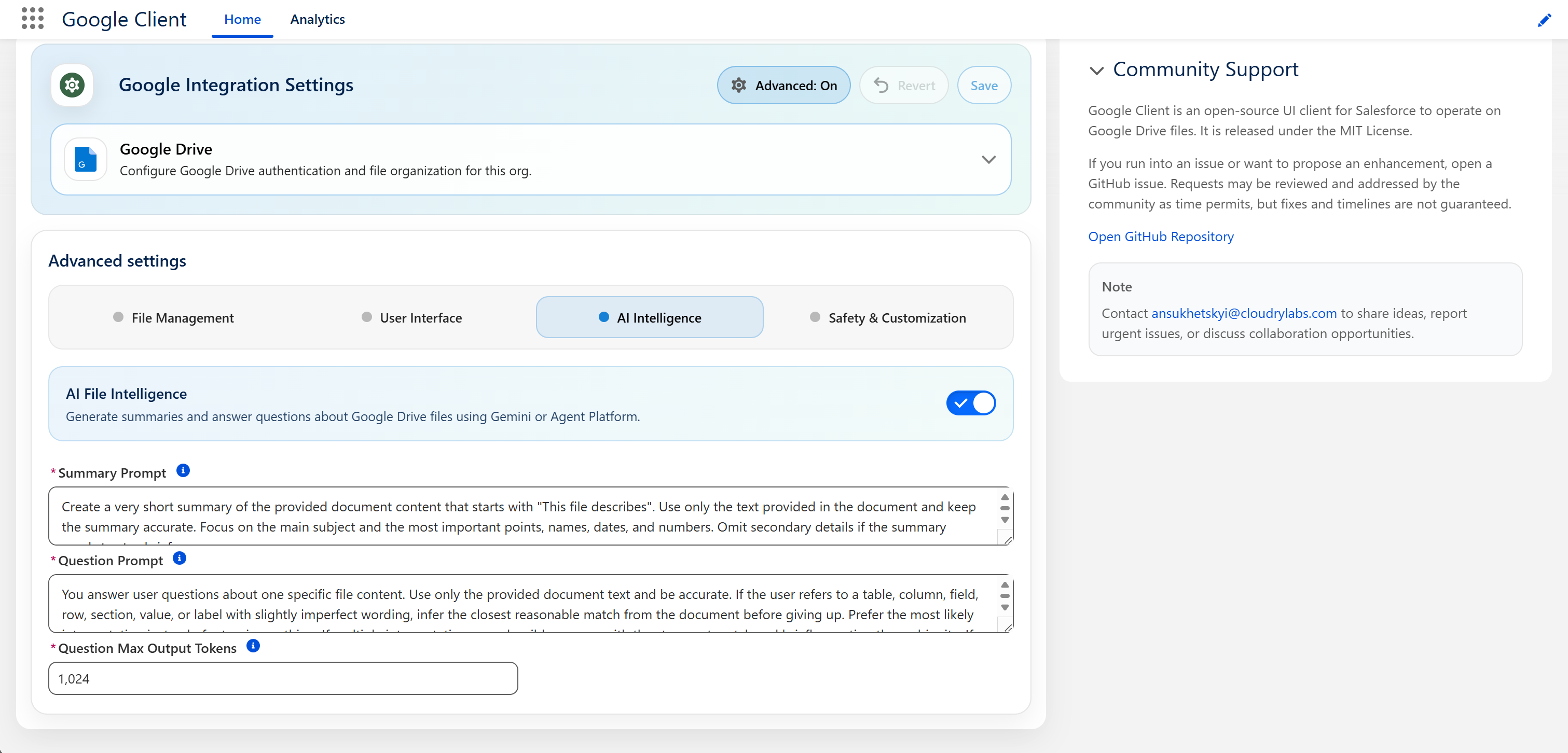
Step 4: Review the Prompts
Google Client ships working prompts for both summaries and questions, so the feature is usable the moment validation passes. Nothing here is required to get started.
Come back to them when you know how your teams want documents described:
- Summary Prompt — how the provider is asked to describe a file
- Question Prompt — how it is asked to answer a user's question
- Question Max Output Tokens — how long an answer may be, which is also what drives your provider costs
📘 See AI Intelligence settings for what each one does and how to write a good prompt.
Step 5: Label Files Automatically (Optional)
Still under AI Intelligence, the AI Labeling section lets Google Client assign one of your Google Drive labels to each new file based on its content. Describe every label in plain language, choose how confident the AI must be, and save. Files the AI is not sure about stay unlabeled.
📘 See File Labeling for how it works and how to write good label descriptions.
Step 6: Nothing, You Are Done
Prompt security is already active. Every question is inspected before it reaches the provider and every answer before it is shown, at a Standard strictness that suits most organizations. You do not need to configure anything for that to happen.
Change it later if you need to:
- 📘 AI Prompt Security — what is inspected, what each mode does, and how to supply your own inspection in Apex
- 📘 Safety & Customization — the settings themselves
What Happens After Setup
After File Intelligence is configured:
- Google Client can generate summaries for supported file versions
- Summaries are stored in Salesforce on the file version
- With AI Labeling on, new files receive one of your Google Drive labels when the AI is confident enough
- The preview window can show a summary sidebar for eligible files
- Users can ask questions about the current file when Q&A is available
If the provider is not configured, validation fails, or the file is not eligible, Google Client simply keeps the regular file experience available without showing broken AI controls.
Where to Go Next
- AI & Intelligence overview — how the layer works and what it does not do
- Document Summaries — where summaries appear and when they are generated
- File Q&A — how users ask, and what will not be answered
- File Labeling — automatic Google Drive labels based on content