Configure Components (Core Clouds)
This page explains how Salesforce administrators add Google Client components to standard Salesforce Lightning pages.
Use this page when you are configuring Sales Cloud, Service Cloud, custom Lightning apps, or any standard Lightning record page. Experience Cloud has a different setup because it requires fixed navigation pages, so it is covered separately: Configure Components (Experience Cloud).
All placeable Google Client components are added using the Lightning App Builder.
- Open Salesforce in Lightning Experience.
- Navigate to the page where you want to add components:
- Home page
- App page
- Record page
- Click the ⚙️ Setup icon in the top-right corner.
- Select Edit Page.
This opens the Lightning App Builder, where you can drag and configure components.
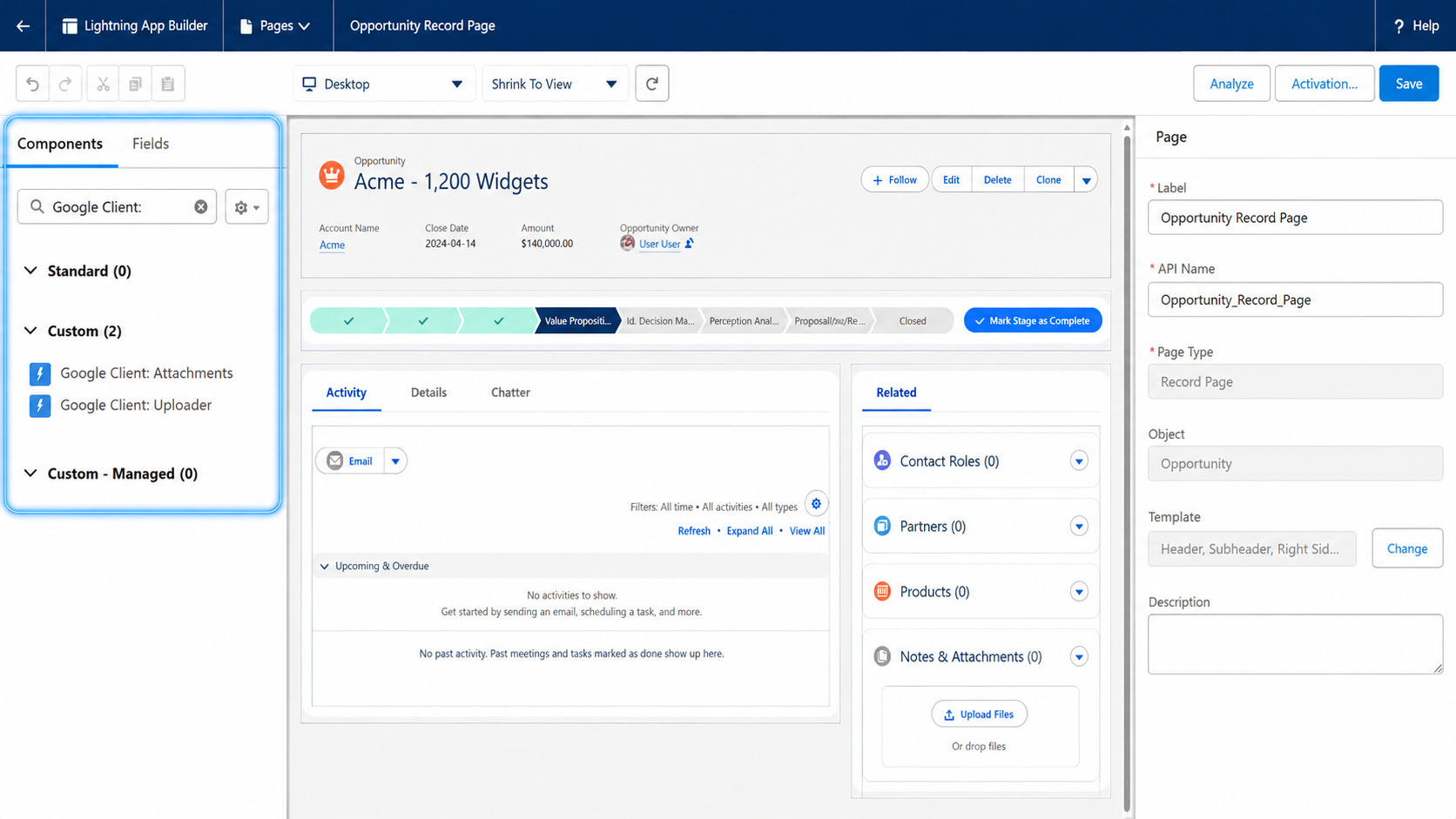
Components You Can Place
Below is the list of components administrators should place manually, referenced by their visible labels in Lightning App Builder.
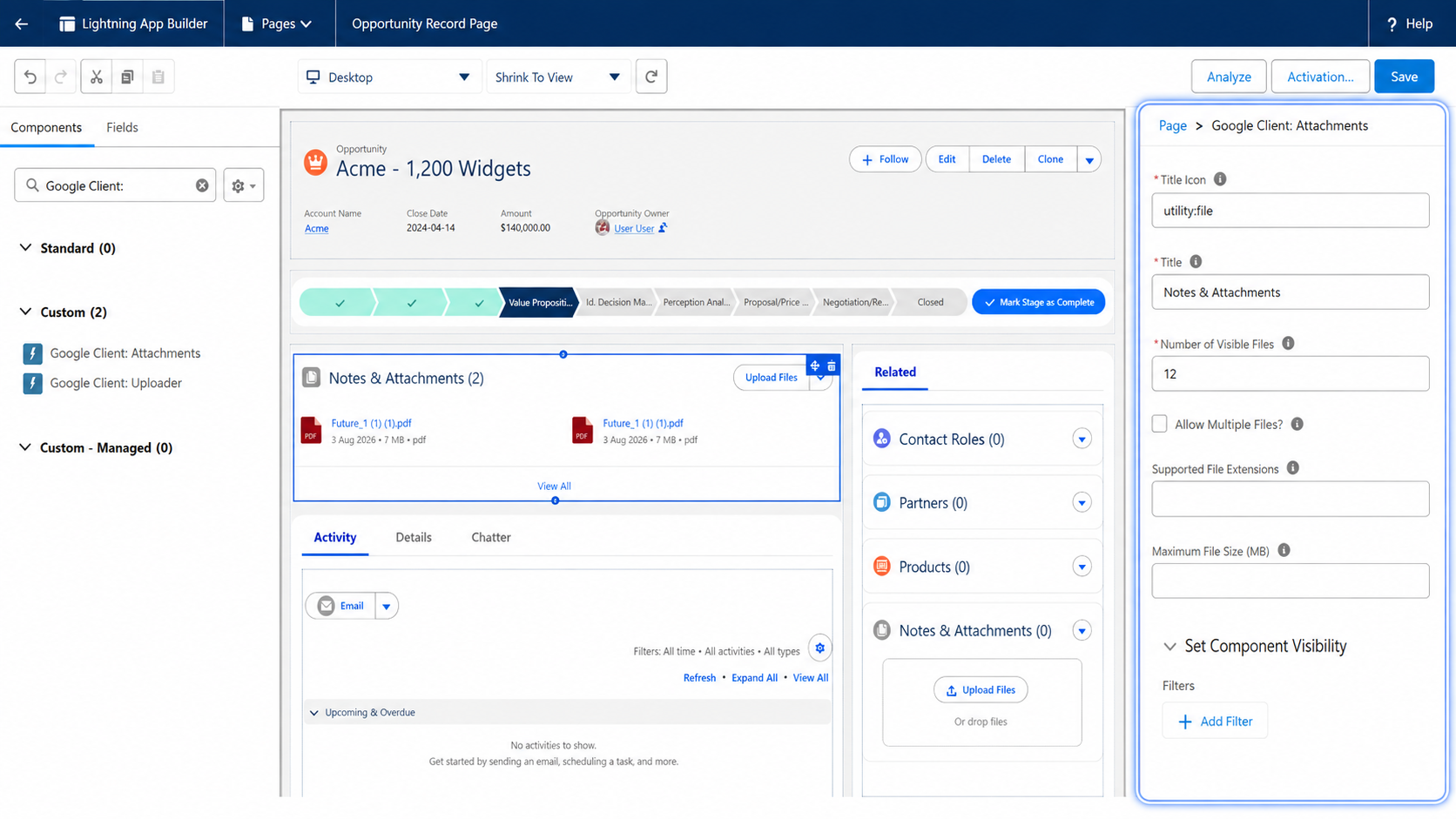
Google Client: Attachments
Provides full Google Drive file management for a Salesforce record in a familiar Notes & Attachments–style list.
Where it can be used
- Record Pages
Configurable properties
- Title Icon — Icon shown in the component header.
- Title — Component title.
- Number of Visible Files — Number of files shown before “View All” is required.
- Allow Multiple Files? — Enables multi-file selection.
- Supported File Extensions — File extensions allowed for upload.
- Maximum File Size (MB) — Upload size limit per file.
Typical use
- Replaces Salesforce Files for record attachments while storing the documents in Google Drive.
- Lets users upload new files or attach existing owned Google Client files to the record.
- Opens preview, sharing, public link, versioning, and file details flows from one familiar record component.
Google Client: Uploader
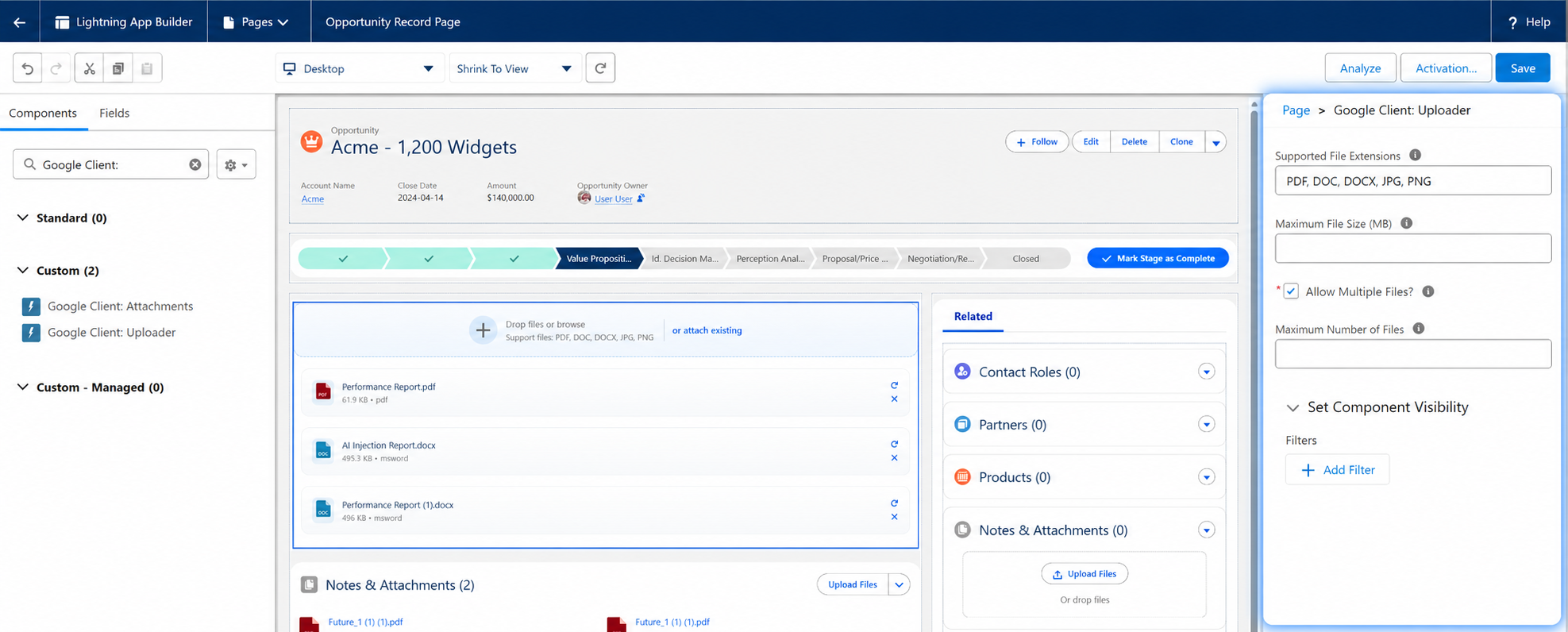
Provides a dedicated upload interface for adding files to Google Drive from Salesforce. This component is available for use in Screen Flows since version 1.1.
Where it can be used
- Record Pages
Configurable properties
- Supported File Extensions — Allowed upload types.
- Maximum File Size (MB) — Upload size limit.
- Allow Multiple Files? — Enables bulk uploads.
- Maximum Number of Files — Limits the number of files per upload.
Typical use
- Replaces Salesforce Files with a dedicated upload experience for a specific record, including support for limiting the number of files (for example, one file per record).
- Allows users to attach existing owned Google Client files when the component is used on a record page.
Google Client: Record Page Details
Renders a single Google file with its preview, sharing, public link, download, versions, and linked Salesforce records.
Where it can be used
- Record Pages. It shows a single Google file, so it only has something to display on a Google File record page.
Typical use
- Placement is normally unnecessary. Google Client already overrides the Google File View action with a page that hosts this component, so opening a file from global search or a direct link lands on it.
- Place it manually only when building a custom Google File record page instead of the shipped one.
Components not available for direct placement
The following components cannot be added manually in Lightning App Builder.
- Preview, sharing, public link, and version modules
- Modal dialogs for delete, sharing, public link, attach existing files, download as, and file details
These components are launched by Google Client when the user opens a file, clicks View All, attaches an existing file, edits details, shares, creates a public link, downloads in another format, or works with versions. They are intentionally hidden to keep navigation and security consistent.
What Users Get After Placement
After the record components are placed, users can work with Google Drive files directly from the Salesforce record:
- Upload new files to Google Drive
- Attach existing owned Google Client files to the record
- Preview supported files, including large PDFs and images
- Download files or use Download As where supported
- Share files, create public links, and manage versions
- Open file details to see versions and linked Salesforce records
Important Notes
Experience Cloud follows different placement and navigation rules. Use the Experience Cloud guide when configuring a site.