File Explorer
The File Explorer is a Lightning tab that lets users browse Google Drive files from Salesforce in a clean and fast User Interface.
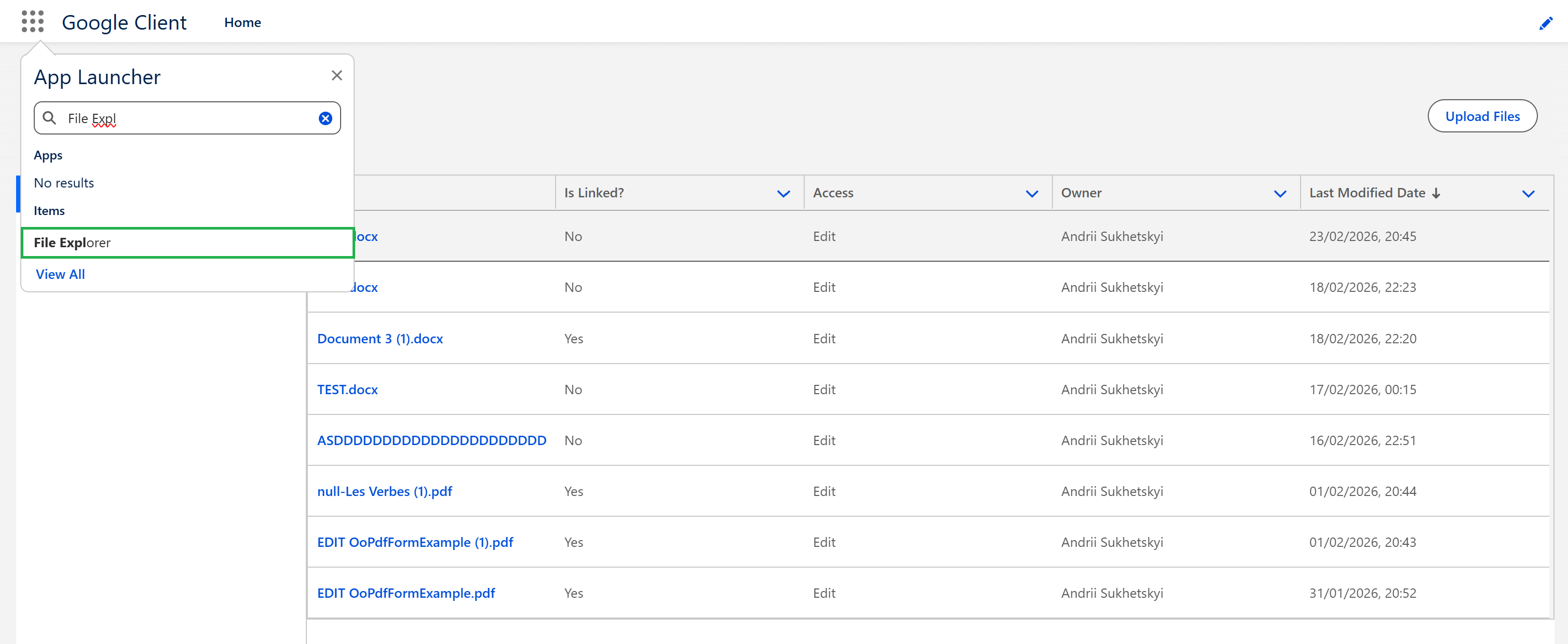
How to Open It
- In Salesforce, go to App Launcher
- Search for File Explorer
- Open the tab
To see the tab, the user must have the permission set Google Cloud Client User.
What This Tab Contains
The File Explorer has two views:
- Owned by Me — files where you are the Google Drive owner
- Shared with Me — files shared with you (primarily via direct user/group sharing)
File List Columns
By default, the table shows your accessible files with key details such as:
- Title
- Is Linked? — whether the file is linked (assigned) to a Salesforce record
- Access — your effective access level (View/Edit)
- Owner
- Last Modified Date
Configuring Columns
Administrators can tailor which columns appear, and in what order, from the Google Client app → setup wizard → Advanced → User Interface.
- Pick columns from the built-in catalog — Title, Type, Size, Created By, Owner, Created Date, Last Modified Date, Is Linked?, Access, Summary (the AI-generated file summary), and Labels (the Google Drive labels applied by AI) — and drag to reorder them.
- Title is always displayed first and cannot be removed, because it is the link users click to preview a file.
- A maximum of 7 columns can be displayed.
Need a field that isn't in the catalog? Enter any Google File Version field API name (for example, Summary__c) in the Add a custom field box. Custom entries are not validated when you save — enter the exact API name. If the field does not exist or cannot be read, its column simply appears empty instead of causing an error.
📘 See Advanced: User Interface for the full column list and what can be sorted.
Searching Files
Use the Search box in the File Explorer header to filter the current view. The search matches on the file name and, when present, the file's Summary and its Labels — so you can find a document by what it contains, or by the label the AI applied to it, even if you do not remember its exact name. Files without a summary or labels continue to match by name.
Beyond the File Explorer, Google Files can also be found through Salesforce global search. Opening a file from a global search result takes you straight to its File Details page. Global search follows Salesforce's standard sharing (files you own or that are directly shared with you), while the File Explorer also shows files you can reach through record-based access.
Loading Large File Lists
The file list loads progressively: an initial set of rows is shown right away, and more rows are appended automatically as you scroll toward the bottom of the table. This keeps the tab responsive when you have access to a large number of files. Searching, filtering, and sorting always apply across all of your files.
Administrators with the Google Client: View All Files or Google Client: Edit All Files permission browse all Google Files here, in a single All Files view instead of the Owned and Shared buckets. Everyone else sees only the files they can actually reach.
Either way the list is paged, and search and sorting run across all of your files rather than only the rows already loaded — so the tab behaves the same in an org with fifty files and an org with fifty thousand.
Uploading Files from File Explorer
You can upload files using Upload Files. However, any file uploaded from this tab will be not linked to any Salesforce record (Is Linked? = No).