Advanced: User Interface
Control how Google Client looks to the people using it.
Open the Google Client app → Advanced → User Interface. The tab has one section today, File Explorer, and more will be added here as they arrive.
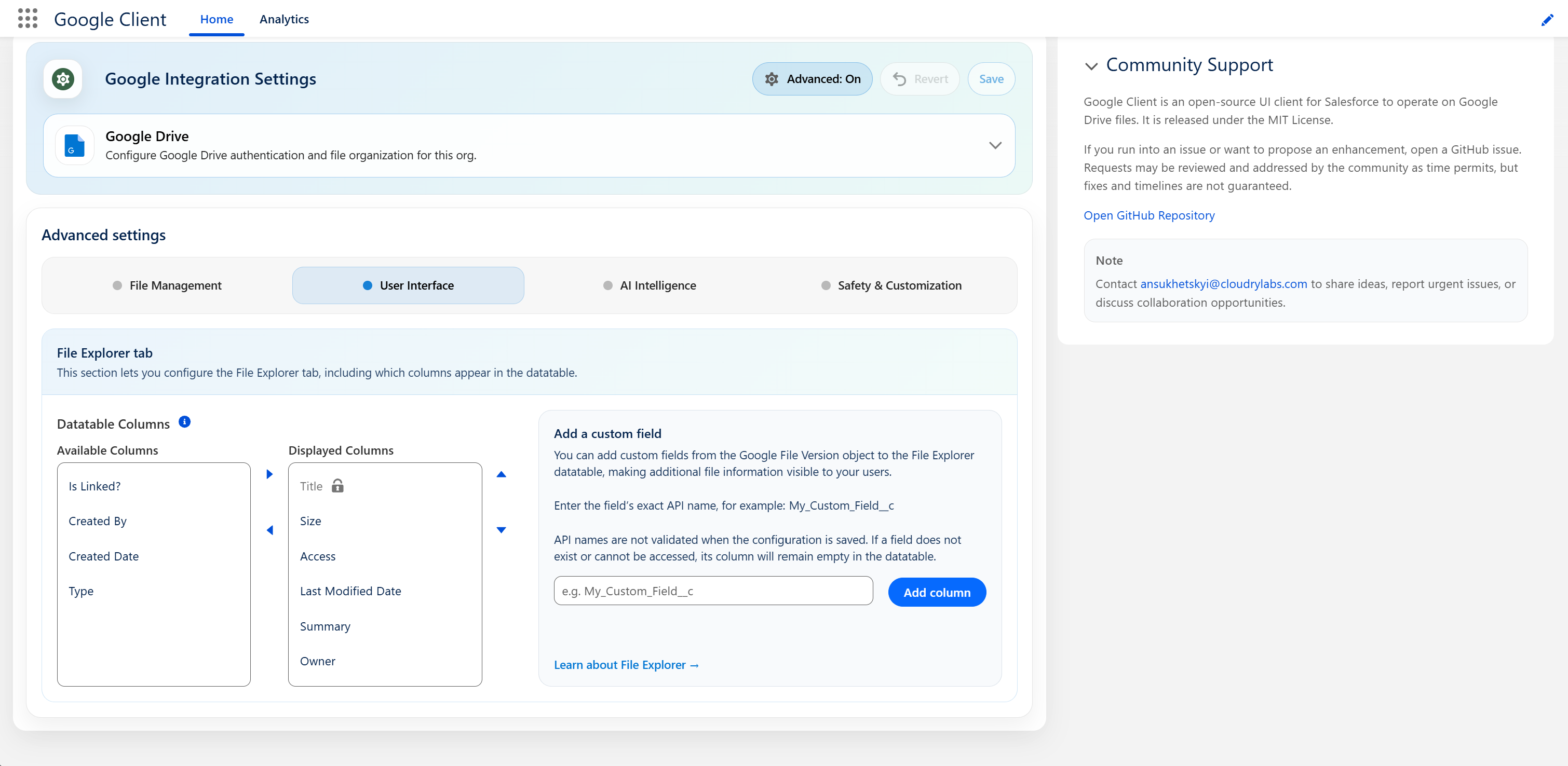
File Explorer
Chooses which columns the file list shows, and in what order. The selection applies to every user.
Columns
Move columns from Available Columns to Displayed Columns, then drag them into the order you want.
| Column | Shows |
|---|---|
| Title | The file name, and the link users click to preview it |
| Type | The file format |
| Size | The file size |
| Created By | Who added the file to Salesforce |
| Owner | Who owns the file record, including when that is a group or a queue |
| Created Date | When the file was added |
| Last Modified Date | When the file was last changed |
| Is Linked? | Whether the file is attached to a Salesforce record |
| Access | The viewing user's own access level, View or Edit |
| Summary | The AI-generated description of the file |
| Labels | The Google Drive labels applied by AI, separated by semicolons |
Two rules apply:
- Title is always displayed first and cannot be removed, because it is what users click to open a file.
- Up to 7 columns can be displayed. Beyond that the table stops being readable, particularly on narrow screens.
Leaving the selection untouched keeps the standard set, which is what every org has today.
Adding Your Own Field
Any field on the Google File Version object can be added as a column. Enter its exact API name — for example My_Custom_Field__c — in the Add a custom field box and select Add column.
Warning
API names are not validated when you save. A field that does not exist, or that the running user cannot read, renders an empty column without an error, so check the spelling first.
Fields that hold sensitive data are never queried, even when named here.
Note
Not every column can be sorted. Title, Is Linked?, Created By, Owner, and the two date columns can; Type, Size, Summary, Labels, Access, and custom fields are shown but not sortable.
📘 See File Explorer for how the tab behaves for end users.