File Labeling
File Labeling assigns one of your Google Drive labels to each new file based on what the file contains. You describe every label in plain language, Google Client compares each uploaded file against those descriptions, and applies the best match. When it is not sure, the file stays unlabeled.
What a Label Does
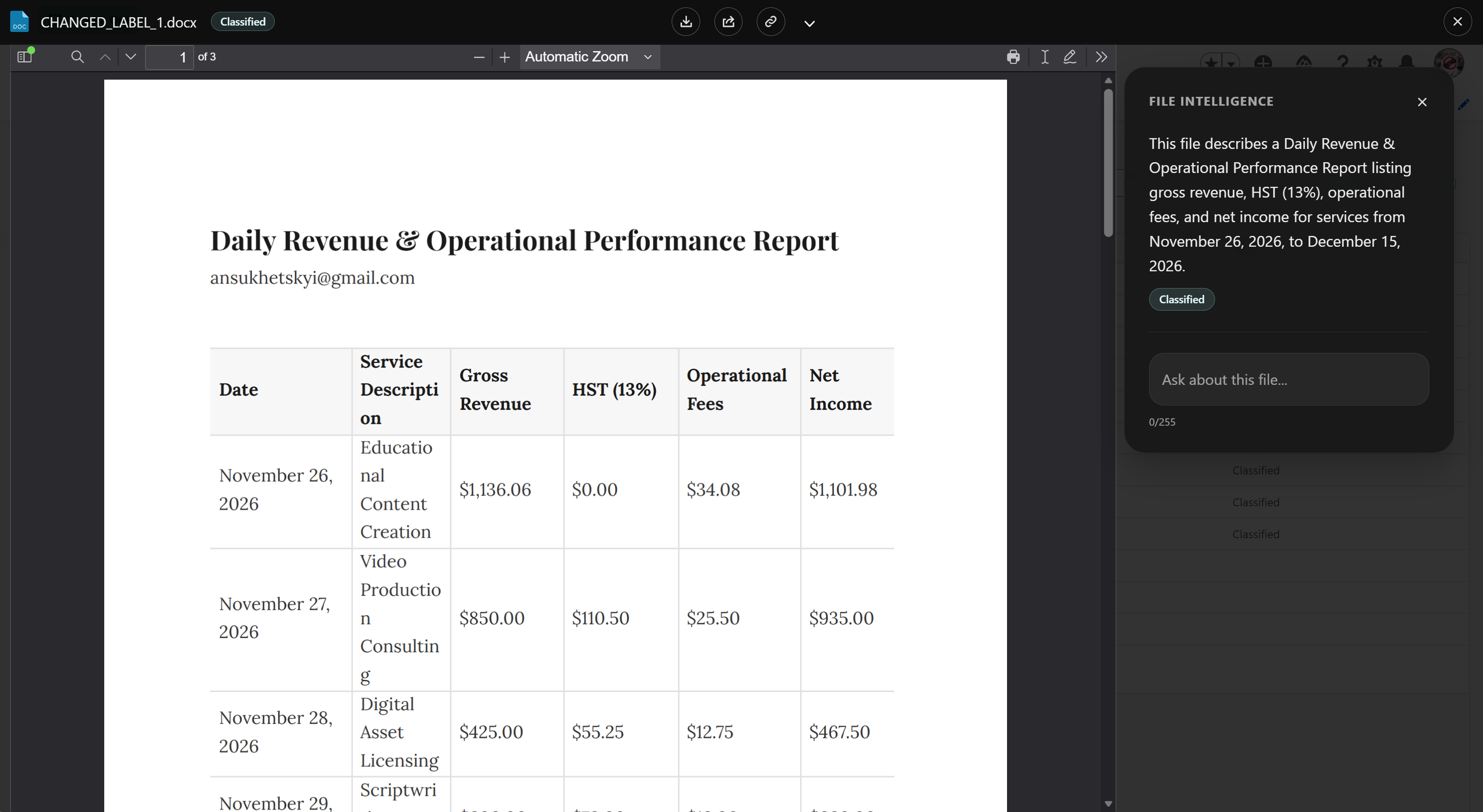
Google Drive labels are the metadata your organization already manages in the Google Admin console: a classification, a document type, a department, a retention class. When Google Client applies one, the file carries that label in Google Drive exactly as if a person had applied it, so Drive search, data protection rules, and retention policies all see it. The Google Workspace copy that Google Client keeps for previews and analysis gets the same label, so both files in Google Drive are classified alike.
Every applied label is also recorded in Salesforce as a Google File Version Label related to the file version, with the label name, the Google Drive label ID, and how confident the AI was. Those records are available in reports and to your own automation.
Where Labels Appear
- In Google Drive, on the file and on its Google Workspace copy
- In the preview window, next to the file name and in the File Intelligence panel under the summary
- On the File Details page, in the Labels card, with the version it was applied to and how confident the AI was
- In File Explorer, through the Labels column an administrator can add, and in the search box, which matches label names
- In reports, through the Google File Version Labels related to each file version
Turning AI Analytics off later does not remove labels. They stay on the files in Google Drive and in Salesforce, and the preview sidebar can still be opened to see them.
When a File Is Labeled
Labeling runs in the background after a file is uploaded or a new version is added, once the summary has been prepared and the file has been placed in its folder. Nobody waits for it.
The same files that can be summarized can be labeled: documents, spreadsheets, presentations, and PDFs. A video or an archive is not analyzed and stays unlabeled.
Each version is labeled once and gets at most one label. Replacing a file with a new version labels the new version on its own merits, and a label that is already on a version is never changed by Google Client. Files uploaded before labeling was turned on are not labeled retroactively.
Only When Confident
For every file, the AI answers with the label it considers the best match and how sure it is, from 0 to 100. The label is applied only when that confidence reaches the Minimum Confidence you set. Below it, or when the AI answers that none of your labels fits, the file stays unlabeled. Nothing is ever guessed, and a file the AI cannot place is simply left as it was.
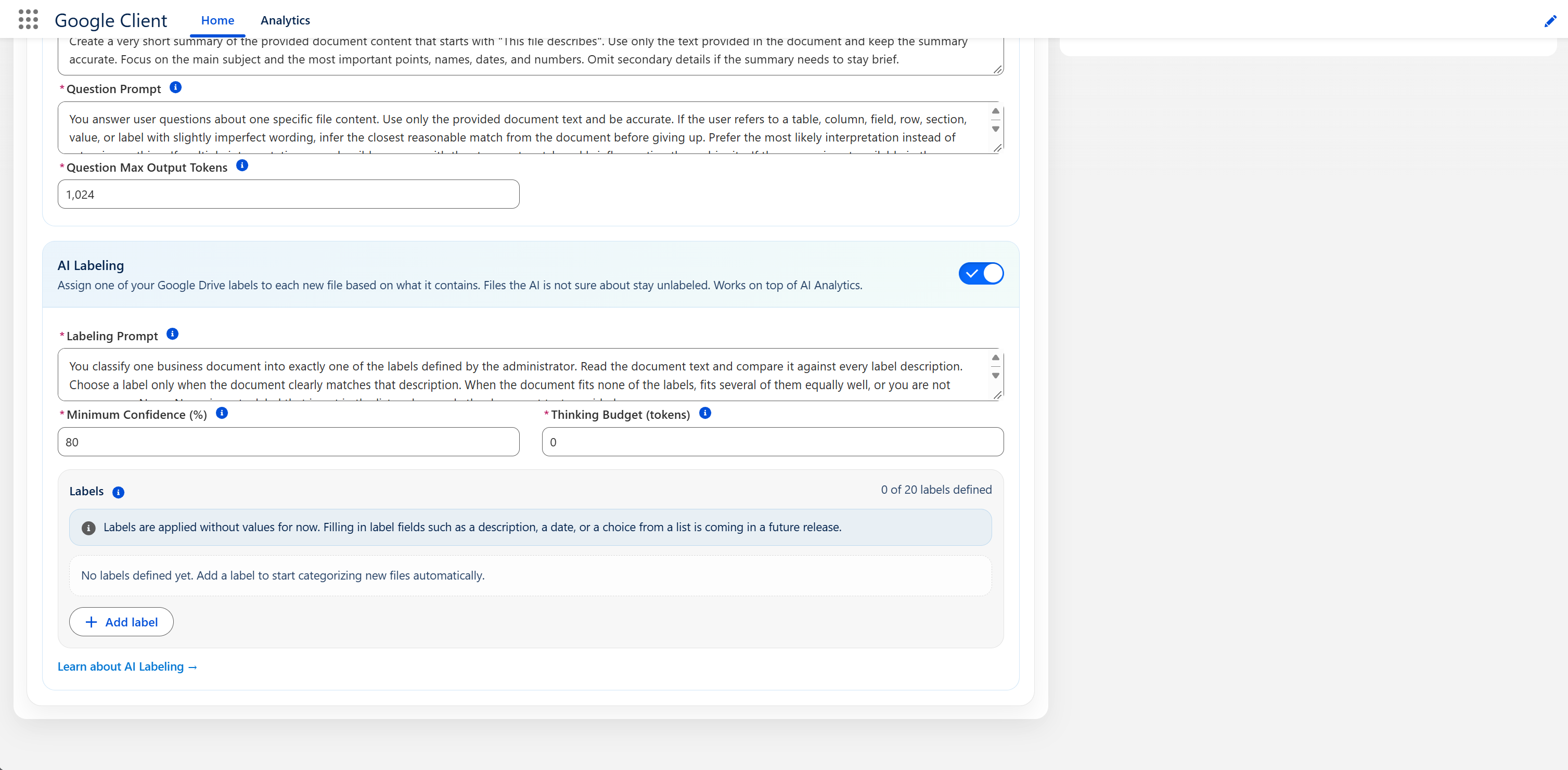
Start at the default of 80. Raise it if labels are being applied too eagerly; lower it if too few files get a label.
Setting It Up
- Create and publish the labels in Google Drive (Admin console → Apps → Google Workspace → Drive and Docs → Labels), and make sure the service account used by Google Client is allowed to apply them.
- Open the Google Client app → Advanced → AI Intelligence.
- Turn on AI Analytics if it is not on yet, then turn on AI Labeling.
- Select Add label and fill in the name, the Google Drive label ID, and a description of the documents the label is for.
- Save.
📘 See AI Intelligence settings for what each setting does.
Finding the label ID
Open the label in the Google Admin console; its ID is shown in the label details and in the page address. It is fixed for the life of the label, so it only needs to be entered once.
Label fields
Labels are applied without values. If a label has fields, such as a description, a date, or a choice from a list, they stay empty and can be filled in by hand in Google Drive. Letting the AI fill them in is planned for a future release.
Writing Good Descriptions
Describe the document, not the label. Say what the document is, what it usually contains, and, if it is easy to confuse with another label, what it is not:
- Invoice — "A bill requesting payment for goods or services. Usually has an invoice number, line items with amounts, a total, and a due date. Not a quote or a purchase order."
- Contract — "An agreement between two or more parties with obligations, terms, and signatures or signature blocks. Includes NDAs, master service agreements, and statements of work."
Short, concrete descriptions work better than long ones. If two of your labels would both fit the same document, tighten the descriptions until they do not.
Cost and Expectations
Each labeled file is one more call to your AI provider, in addition to the summary, and is billed by them. The Thinking Budget setting lets the AI reason before deciding, which helps with ambiguous documents but makes each call slower and more expensive. Leave it at 0 unless labels are being missed.
What Happens When It Cannot Label
Nothing breaks. If the provider is not configured, the file cannot be converted, Google Drive refuses the label, or the call fails, the file simply has no label and every other part of Google Client continues to work. Failures are recorded through the logging framework and are visible to administrators on the Analytics dashboard.
Privacy
Labeling sends the document content to the AI provider you configured, and to no one else. The request passes through the same protections as a summary or a user question. See AI Prompt Security.