Migrate Salesforce Files
The Migration tab moves the Salesforce Files you already have into Google Drive, a few at a time in the background, and turns each one into an ordinary Google Client file. A migrated file appears under Notes & Attachments on the same record, keeps its owner, is visible to the same people the Salesforce file was, gets a preview, lands in the configured folder, and with AI Analytics on it is summarized and labeled like any upload. The Salesforce copy stays where it is.
What moves, and what stays
| Moves to Google Drive | Stays in Salesforce |
|---|---|
| Salesforce Files attached to at least one record | Files not attached to any record |
| Files up to 5 MB | Files larger than 5 MB |
| The current version of each file | Earlier versions of a file |
| Files stored outside Salesforce, notes, and classic Attachments |
A file attached to several records is copied once and attached to every one of them. A file that was already copied, by an earlier migration or by the Upload File to Google Drive flow action, is skipped, so running the same selection twice never creates a duplicate.
Who can run it
The tab belongs to the Google Client app and needs the Google Cloud Client Admin permission set. The person running a migration also needs the standard Query All Files permission on their profile or on a permission set, otherwise some files would be missed. Without it the tab says what to ask for and offers nothing else.
📘 See Permissions
Start a migration
The steps at the top of the tab walk through a migration. Next stays off until the step is complete, and Back returns to the previous one.
- Readiness. Confirms the permission and the Google Drive connection, says where files land, and restates what moves and what stays.
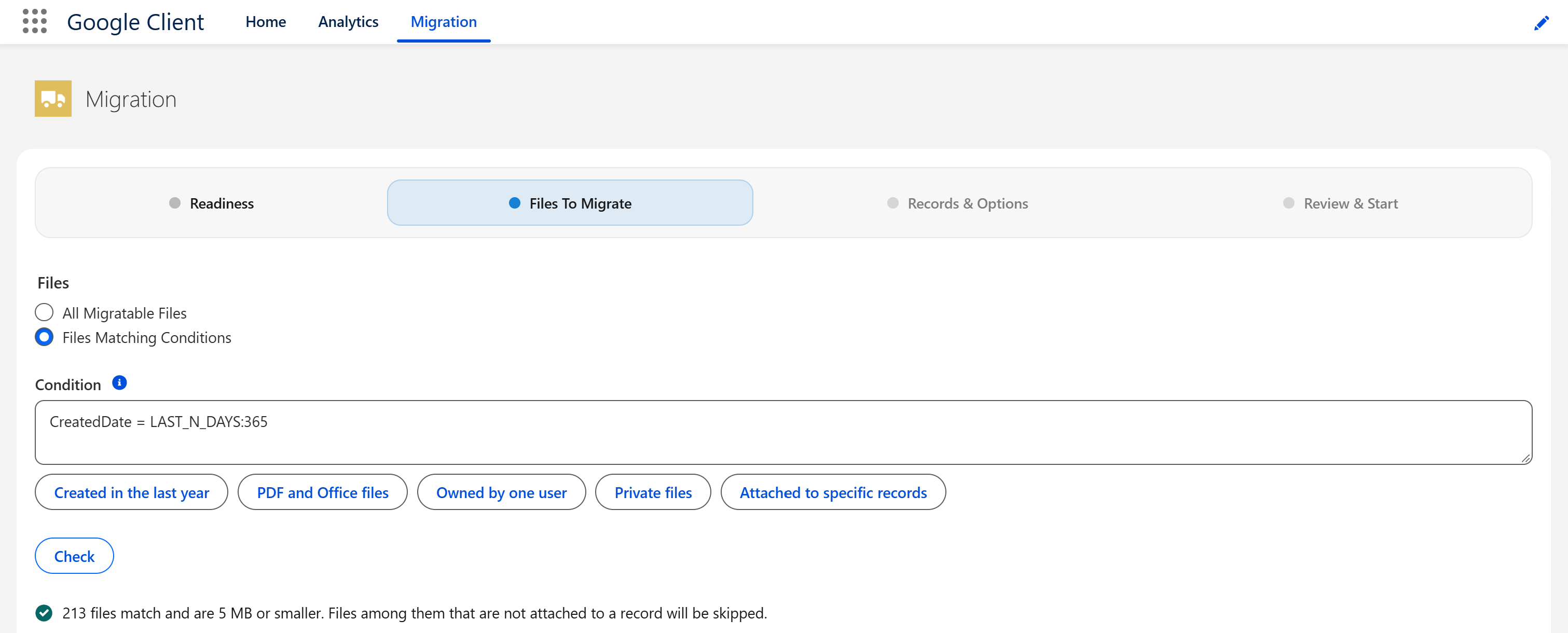
- Files to migrate. Choose All Migratable Files, or Files Matching Conditions and describe the files with a condition (see below). Check counts the files the condition selects and shows the first ten. When nothing matches, the check says so and Next stays off.
- Records & options. Keep Any record, or list the objects a file must be attached to. With AI Analytics on, Skip AI analysis for these files copies the files without a summary or a label; previews and folder placement happen either way.
- Review & start. A summary of every choice, the count from the check and an estimate of the longest the run can take. The count includes files that are not attached to the records chosen in step 3, and the run skips those. Start migration queues the first step straight away.
Writing a condition
A condition is written the way a Salesforce report filter is written in SOQL, as a WHERE condition on the ContentVersion object without the WHERE keyword. The starter buttons under the box insert common examples, which can be combined with AND.
| What you want | Condition |
|---|---|
| Files created in the last year | CreatedDate = LAST_N_DAYS:365 |
| PDF and Office files only | FileExtension IN ('pdf', 'docx', 'xlsx', 'pptx') |
| Files owned by one user | OwnerId = '005...' |
| Files in a library | ContentDocument.ParentId = '058...' |
| Private files | SharingPrivacy = 'P' |
| Files attached to specific records | ContentDocumentId IN (SELECT ContentDocumentId FROM ContentDocumentLink WHERE LinkedEntityId IN ('001...')) |
Any field of ContentVersion can be used, custom fields included, and fields of the parent file through ContentDocument. The size and scope rules are applied on top of the condition, so a condition can only narrow what is migrated. A condition Salesforce cannot run is reported under the box with the reason.
Note
To migrate files attached to records that match a condition of their own, for example accounts in one industry, narrow by object in the Records & options step and by the files' own fields in the condition. A condition on the records themselves is not supported.
Follow the progress
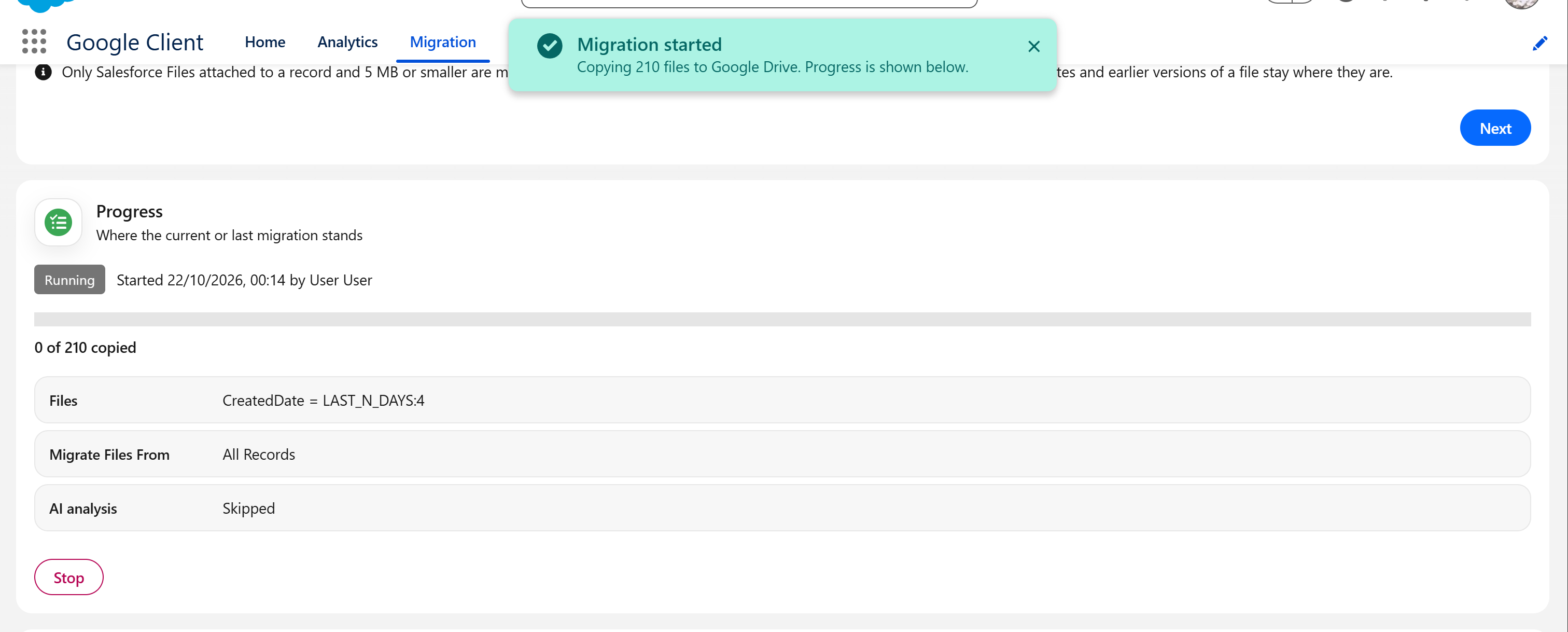
The Progress card shows the status of the current or last run, a progress bar, how many files have been copied and roughly how long is left, together with what is being migrated. It updates by itself every few seconds, so there is no need to reload the page.
Leaving the page and coming back in the same browser shows the same card. Another browser, or another administrator, sees that a migration is running and how many files have been copied, but not the selection it was started with.
| Status | Meaning |
|---|---|
| Running | A step is copying files. |
| Waiting for the next step | The next step is scheduled; the time is shown. |
| Stopping | Stop was pressed; the files being copied finish first. |
| Stopped | The run was stopped. |
| Finished | Every file in the selection has been handled. |
| Stopped unexpectedly | A step could not be completed. Files already copied are kept; run again to continue. |
A finished run fills the bar and says how many files were copied. When fewer files were copied than the check counted, a note explains that the rest stay in Salesforce as expected, because they are already in Google Drive or not attached to the records chosen in step 3, and that Run again picks up any file that could not be copied. A stopped run shows how many of the counted files were copied and how many were not.
Stop, and run again
Stop cancels the next step. The files being copied at that moment finish first, so keep the page open until the status reads Stopped. Run again reopens the wizard with the saved selection, one click away from starting; files already in Google Drive are skipped, so a stopped run simply continues from where it was.
Only one migration runs at a time. Starting another while one is in progress is refused.
Migrated files
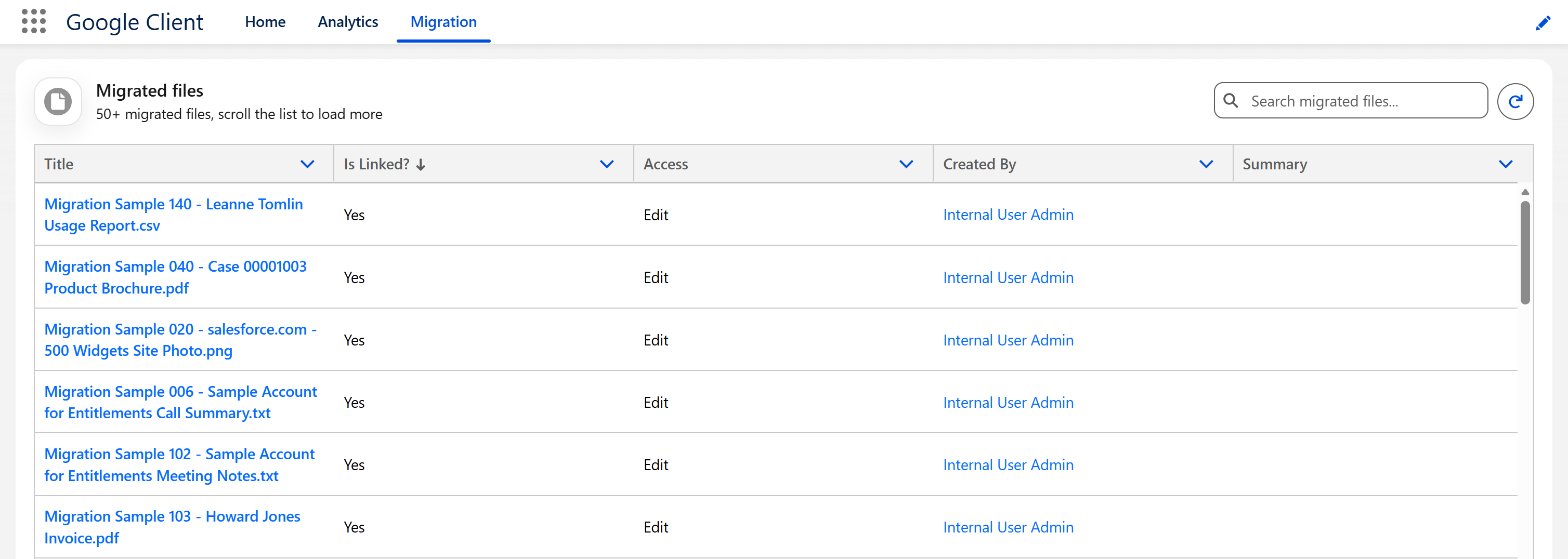
The Migrated files card lists the files the migration has copied in that you can open, with the same columns as File Explorer. Search and sort work the same way, and clicking a file opens its preview.